Mouse Control Mode
Mouse Control Mode is the default way to simulate mouse and trackpad actions with your keyboard. It combines cursor movement, precision control, clicks, scrolling, and gestures in one mode.
You can enter Mouse Control Mode by command, by assigning a dedicated shortcut, or by holding Space in Command Mode. If you prefer to send Space normally while staying in Command Mode, you can disable the hold-Space behavior in settings.
Movement Keys
Section titled “Movement Keys”Movement keys map to different keyboard keys depending on the layout you choose. For example, in the IJKL layout, you use the I, J, K, and L keys for up, left, down, and right.
You can use these keys to move the cursor in the specified direction. But the actual behavior will be different depending on the mode you are in. For example, in Mouse Control Mode, the cursor will move to the edge of a rectangle around it.
Switch Display
Section titled “Switch Display”You can move the cursor to center of the target display using number keys. The corresponding number of each display will be shown in the status indicator at the top left corner.
Mouse Control Mode
Section titled “Mouse Control Mode”Movement keys map to different keyboard keys depending on the layout you choose.
Default Behavior
Section titled “Default Behavior”When this mode is active, you will see a rectangle around the cursor, you can use the movement keys to move the cursor to the edge of the rectangle.
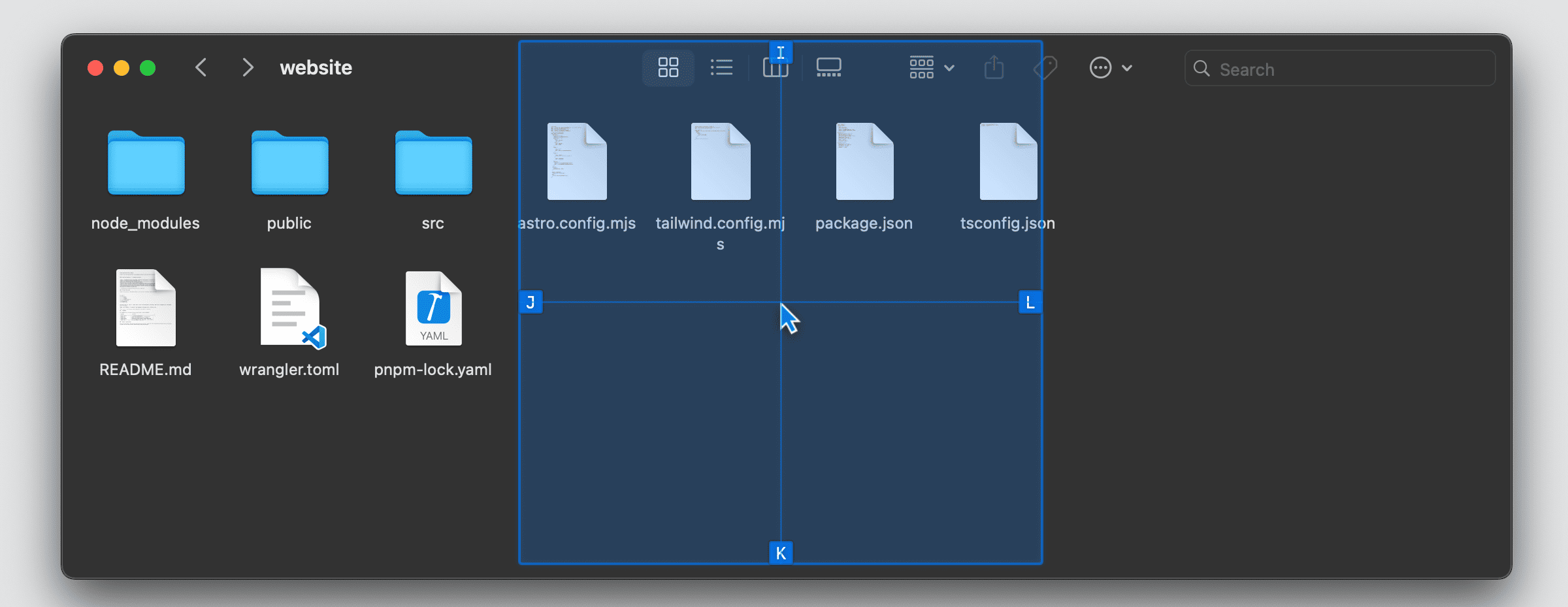
Accurate Movement
Section titled “Accurate Movement”When Shift is pressed and held, you can move the cursor with more accuracy. You may still need several attempts to get the cursor to the exact position you want, but the rectangle will shrink to a smaller size as you move, allowing for precise positioning.
The app provides two modes for accurate movement: Bisection and Nine-Square-Grid.
You can switch between these modes in the settings. The Nine-Square-Grid mode is more precise but harder to master, while the Bisection mode is easier to use but less precise.
Bisection Grid Mode
Section titled “Bisection Grid Mode”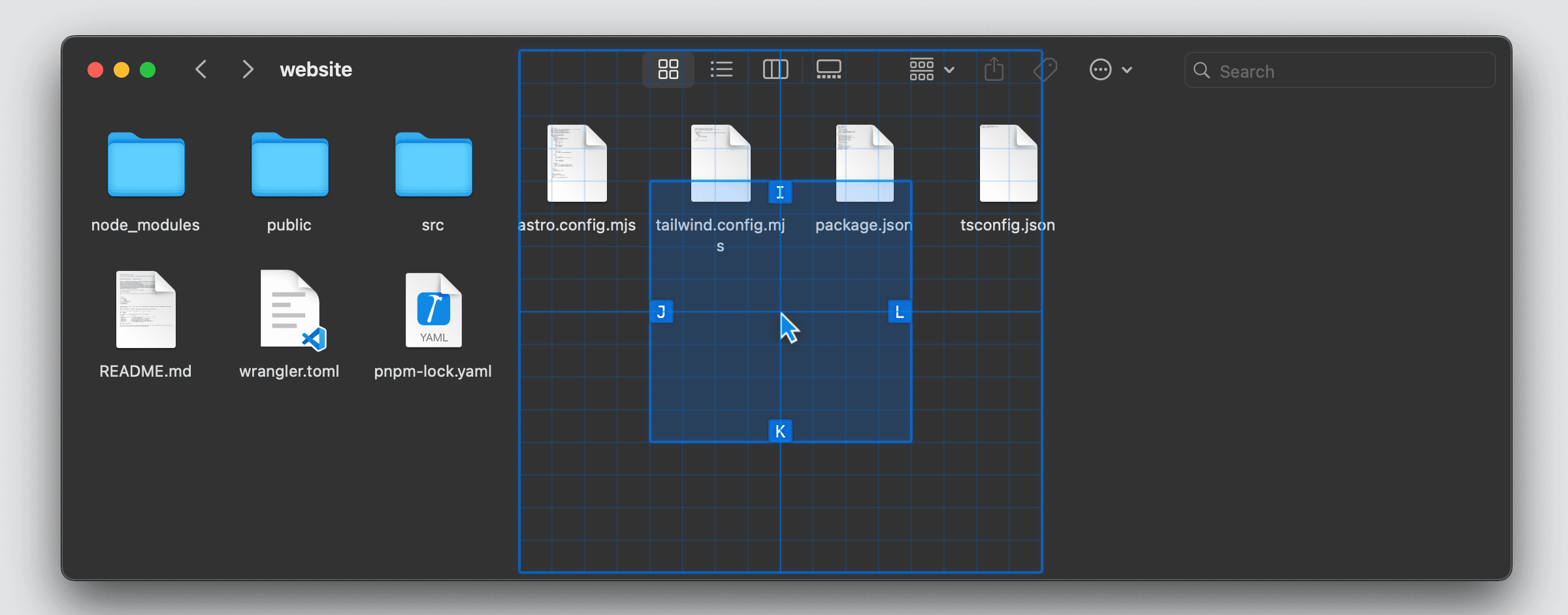
For example, if you choose to move left, the cursor will move to the left half of the rectangle.
Nine-Square Grid Mode
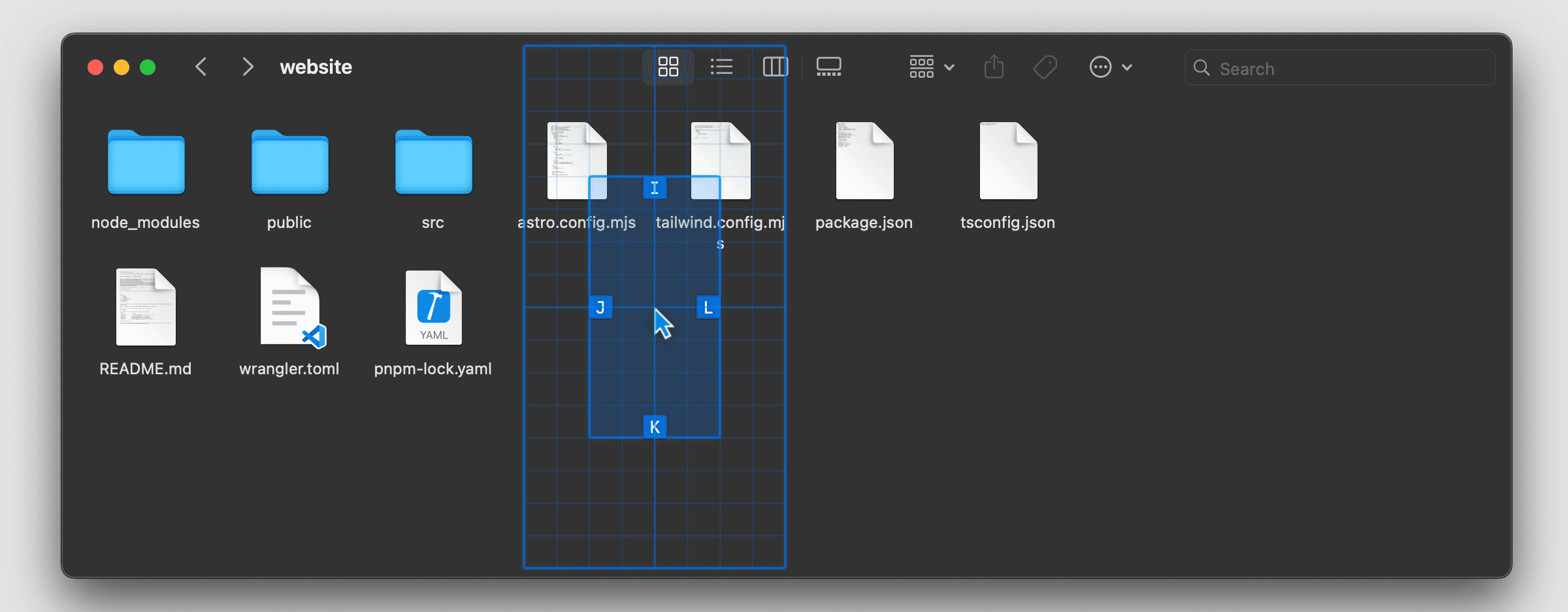
Section titled “Nine-Square Grid Mode”When active, the rectangle will be divided into nine squares. You can use the nine square movement keys to move the cursor to the center of the desired square. And the desired square will again be divided into nine squares, allowing for more precise movements.
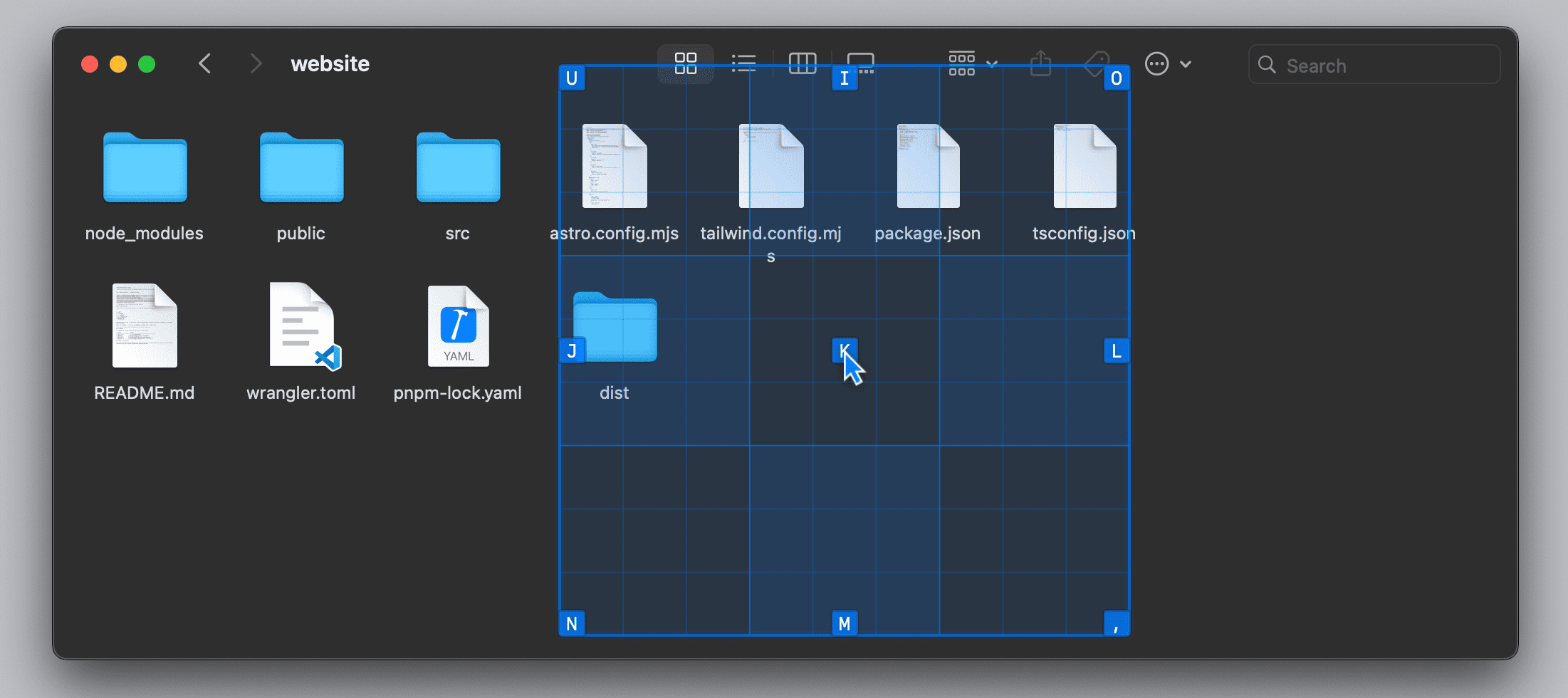
If you move to the square on the left, the cursor will move to the center of that square.
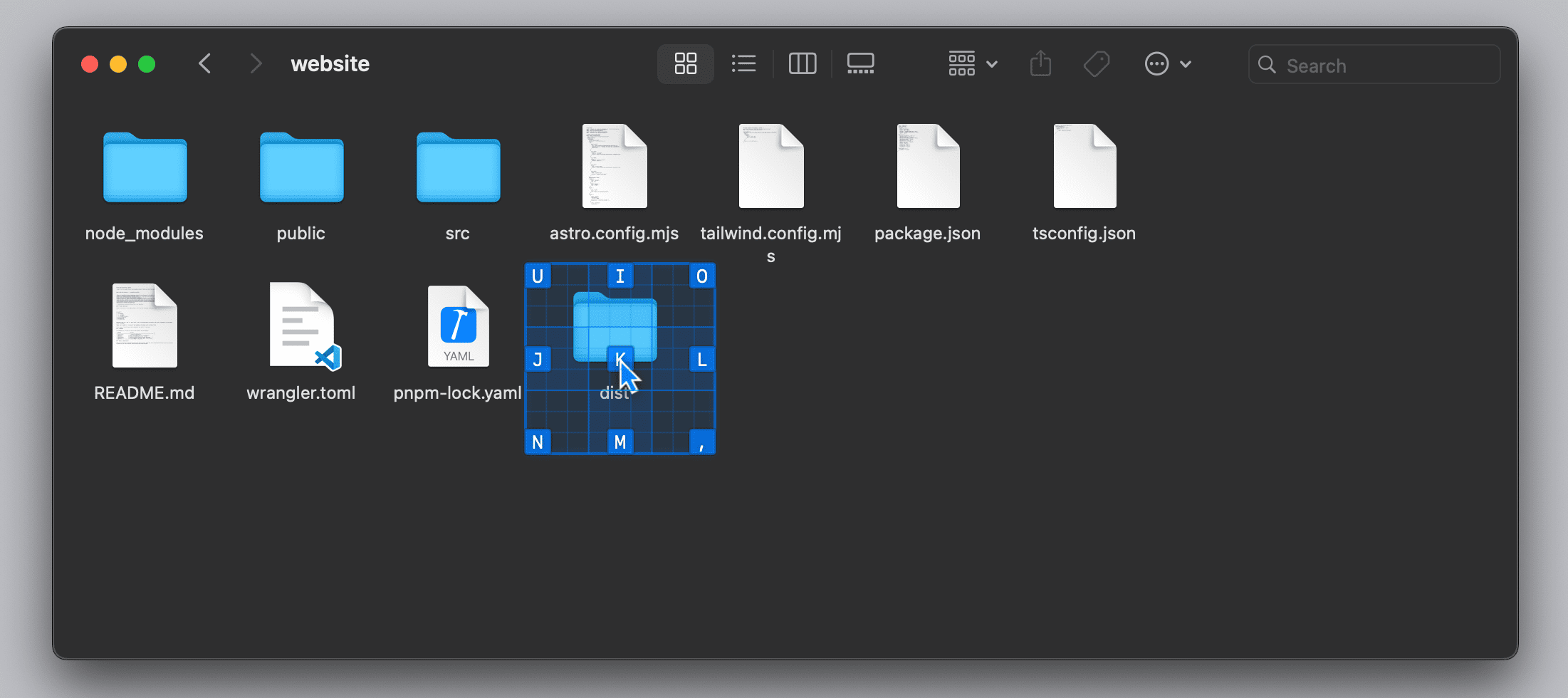
Change the Reference Rect
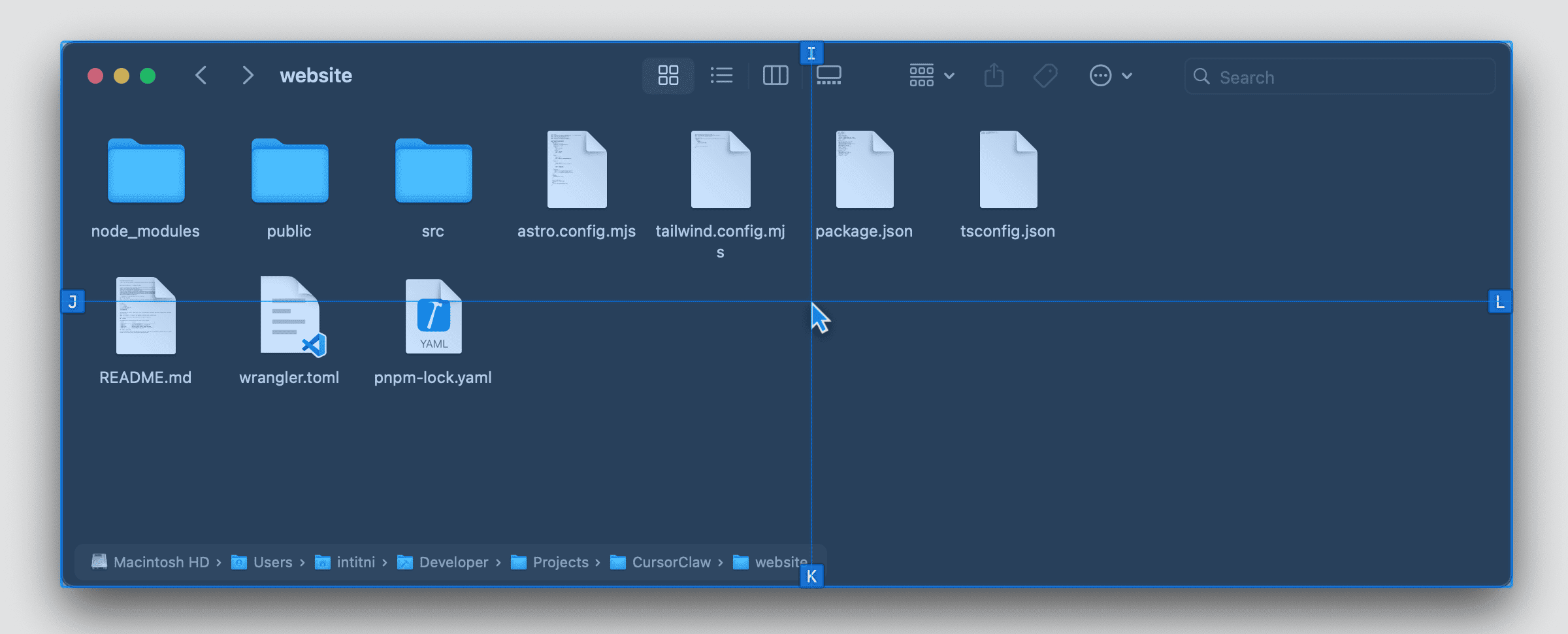
Section titled “Change the Reference Rect”When modifiers like Command , Option , and Control are held, the reference rectangle will change to the element under cursor, the window, or the active screen, respectively. This allows you to move the cursor relative to different contexts.
It’s useful when you want to get to the edge of the window or screen, or, when you want to perform a long-distance movement.
Click and Scroll
Section titled “Click and Scroll”You can use the mouse keys to perform mouse actions like clicking and scrolling. They are the same across all layouts.
| Key | Action |
|---|---|
| Enter | Left click |
| \ | Right click |
| ’ | Middle click |
| ; | Extra finger for gestures |
| . | Extra finger for gestures (smart zoom) |
| [ | Scroll up. Press Shift + [ to scroll left. |
| ] | Scroll down. Press Shift + ] to scroll right. |
Holding Mouse Buttons
Section titled “Holding Mouse Buttons”Besides holding the mouse keys manually, you can also hold the mouse buttons by pressing the Tab key. This allows you to perform actions more easily without physically pressing multiple buttons at a time. To release the mouse buttons, simply press the Tab key again.
Gestures
Section titled “Gestures”Guesture keys are different in each layout.
When you press multiple mouse keys or finger keys at the same time, you can perform trackpad gestures like pinch to zoom or two-finger scrolling.
| Action | Fingers Requried | Other Keys |
|---|---|---|
| Pinch to Zoom | 2 or none | Pinch Keys |
| Rotate | 2 or none | Rotate Keys |
| Two-Finger Swipe | 2 | Movement Keys |
| Four-Finger Swipe | 4 | Movement Keys |
| Smart Zoom | none | Double tap . |
Extra Mouse Keys
Section titled “Extra Mouse Keys”By setting treatRotateAsMouseButtonWhenNotHoldingFingers and treatPinchAsMouseButtonWhenNotHoldingFingers to true in the configuration file, you can use rotate and pin keys as mouse buttons.