Window Mode
You can enter Window Mode by triggering command.moveAndFocusToWindow with its command sequence (w by default). You can also assign a dedicated shortcut for this mode.
Select a Window
Section titled “Select a Window”By default, Window Mode highlights windows and menu bar items in the current space, and provides a hint for each target.
For windows, typing the hint activates the target window and moves the cursor to its center. You can also press Enter to move the cursor to the current window.
For menu bar items, typing the hint moves the cursor to that item and performs a left click.
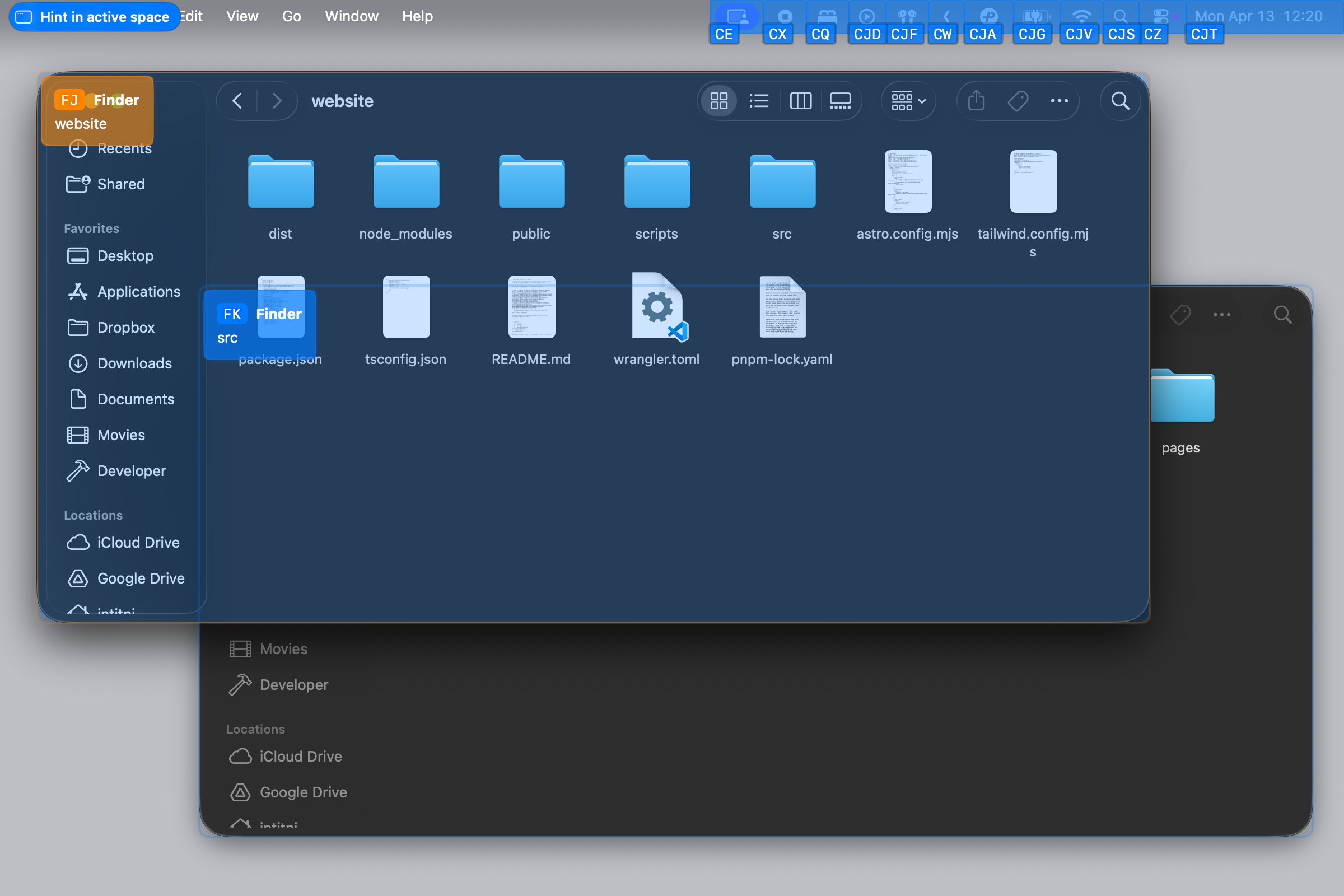
If you know a window’s hint, type it directly to jump to that window in another Space without opening the list first. Hold Option to view windows from the current and other Spaces on each display and look up their hints. You can keep entering a hint after releasing Option.
Jump to a Favorite Window
Section titled “Jump to a Favorite Window”To mark a window as a favorite, open Element Menu Mode for that window, hold Space , and choose Favorite Window. Its favorite status and number are restored after restarting Cursor Crane, as long as the window stays open.
In Window Mode, press the number shown next to the window. To jump directly from Command Mode, type that number before the sequence for command.moveAndFocusToWindow. For example, if your Window Mode sequence is w, type 2w to focus favorite window 2 and move the pointer to its center while staying in Command Mode. To focus favorite window 10, shown as 0 in Window Mode, type 0w or 10w.
If you customized the command sequence, put the number before your own sequence. Cursor Crane shows a warning for an out-of-range number, an unassigned number, or a favorite window that has closed.
Related Commands
Section titled “Related Commands”| CommandIdentifier | Action |
|---|---|
command.moveAndFocusToWindow | Move and focus to window |
command.moveAndFocusToPreviousWindow | Move and focus to previous window |